Build a Project Tracker in 2 Minutes
Create a fully functional project tracker with table and board views — no templates needed.
Create a new database
In the sidebar, click + to create a new page and select Database. Give it a name like 'Project Tracker'. Your database opens instantly with a table view.

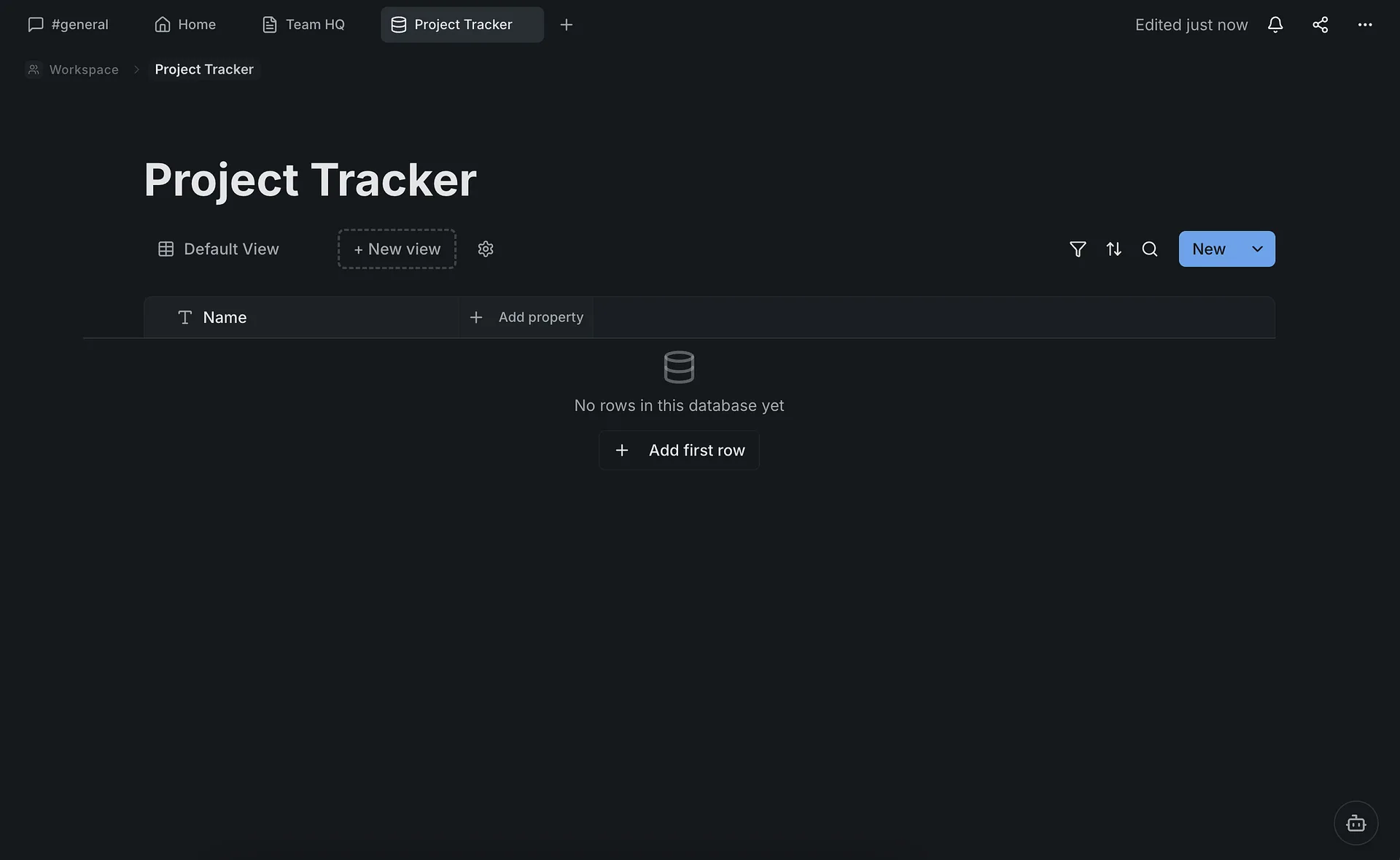
Your empty table
You start with a clean table and a Title column. This is your blank canvas — every row will be a task or project item.
Add a Status property
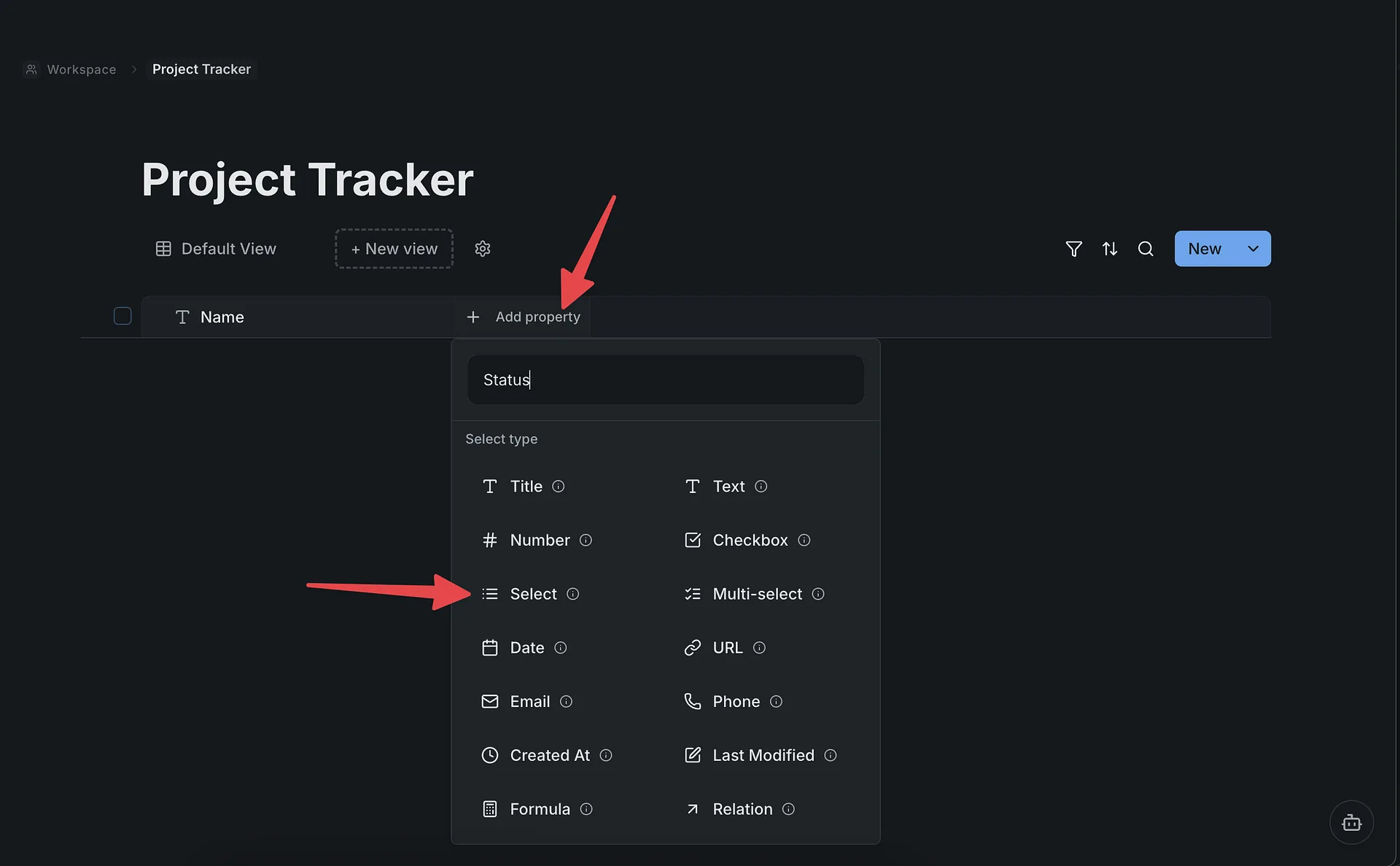
Click the + button at the end of the column headers. Name the property 'Status', choose the Select type, and add options like To Do, In Progress, and Done. Each gets its own color.
Add more properties
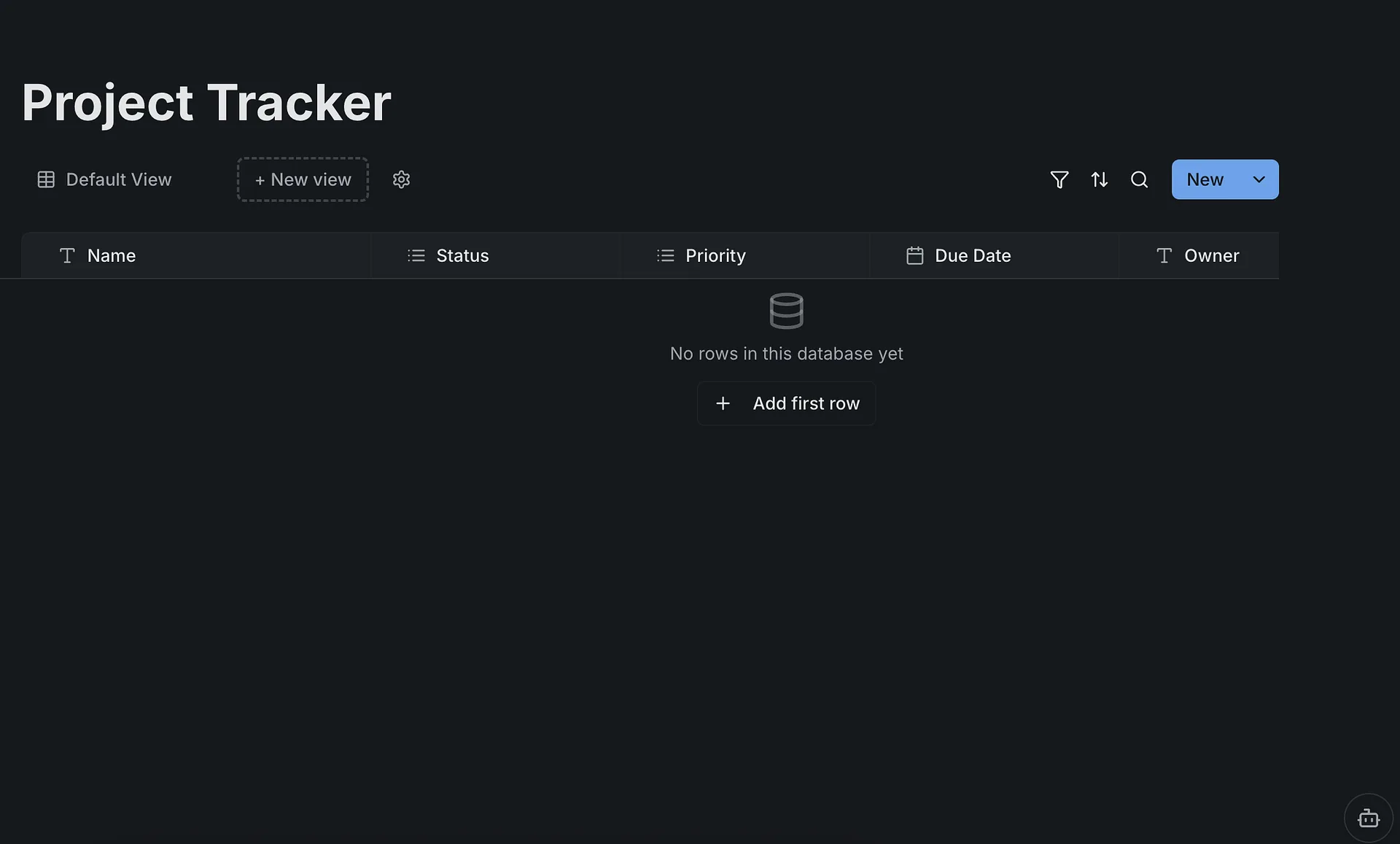
Add a few more columns to round out your tracker: Priority (Select), Due Date (Date), and Owner (Text). Click + for each one and pick the right type.
Add your first tasks
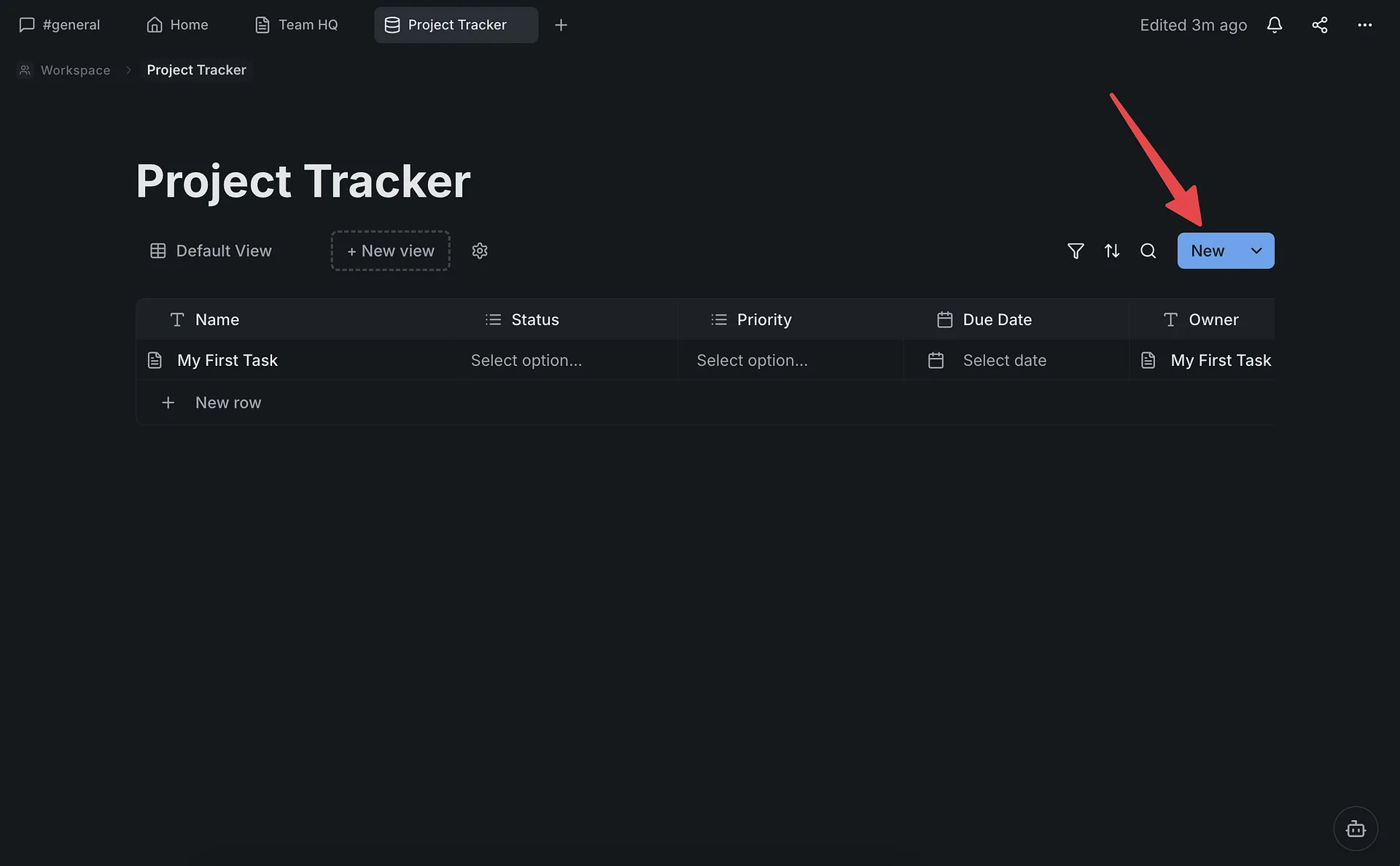
Click 'New' to add rows. Type a task name, set the status, assign a priority, pick a due date. Each row is a task in your tracker.
Fill in the details
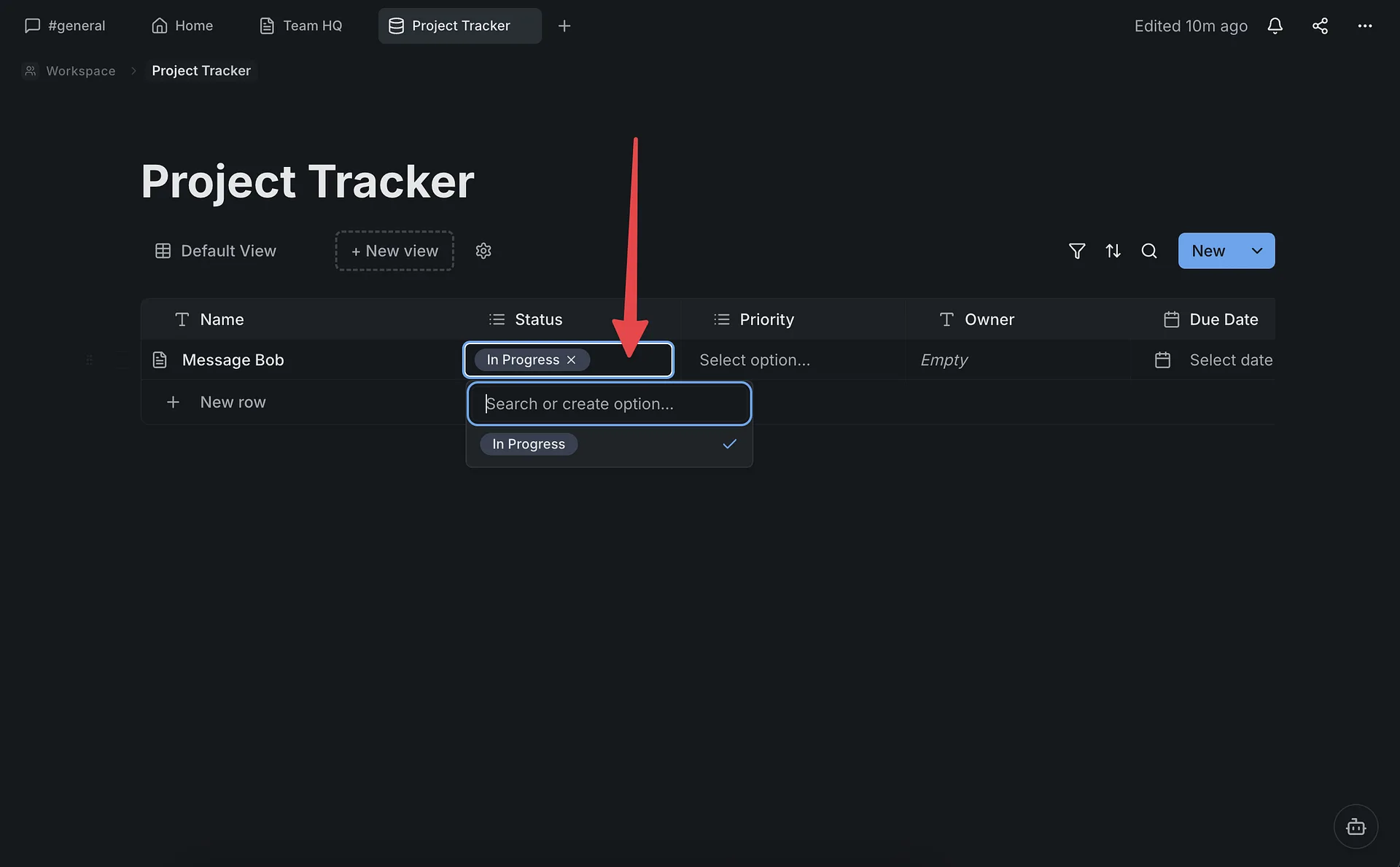
Click any cell to edit it. Select dropdowns for Status and Priority, pick dates from the calendar, type in text fields. Your tracker takes shape in seconds.
Switch to Board view
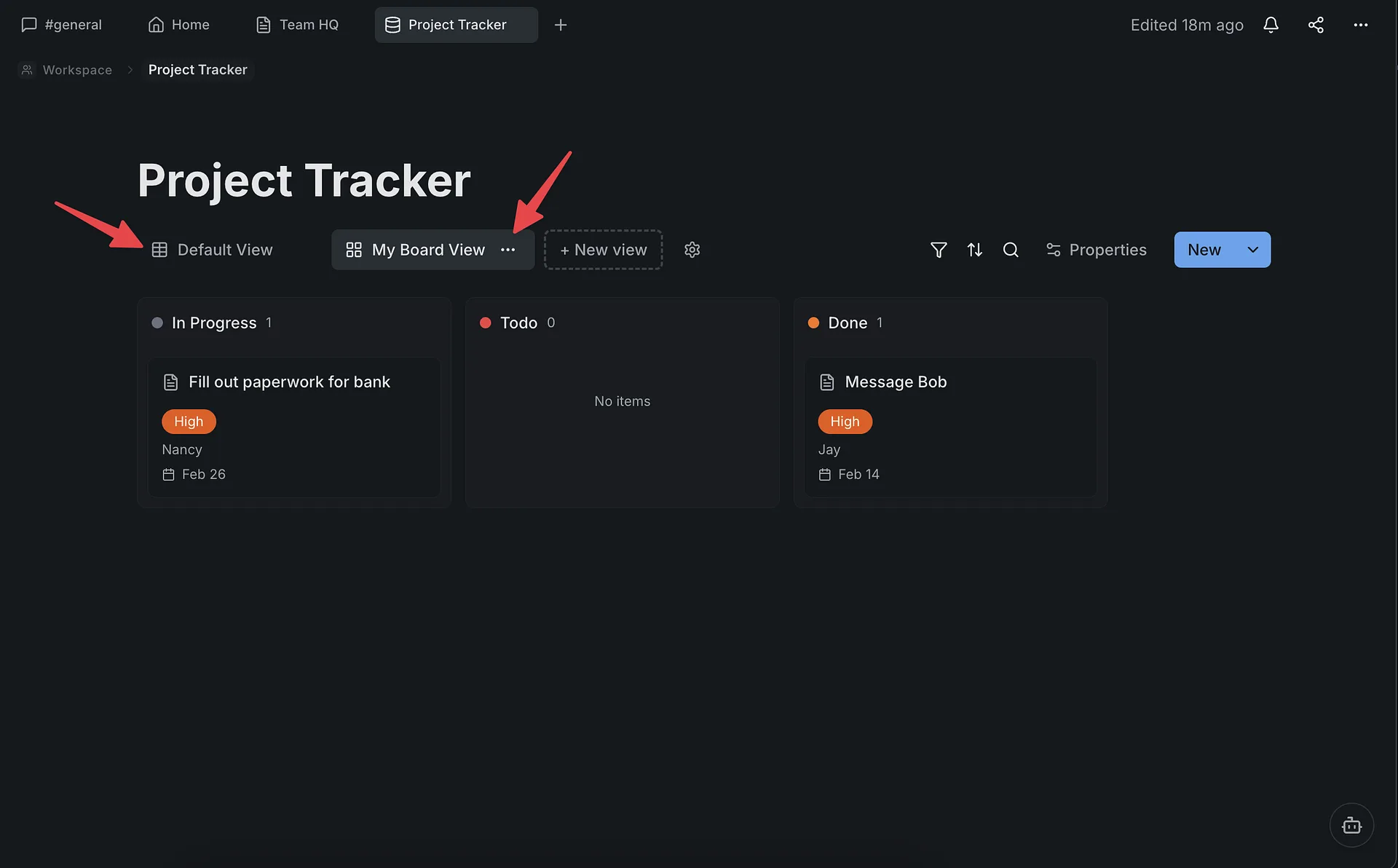
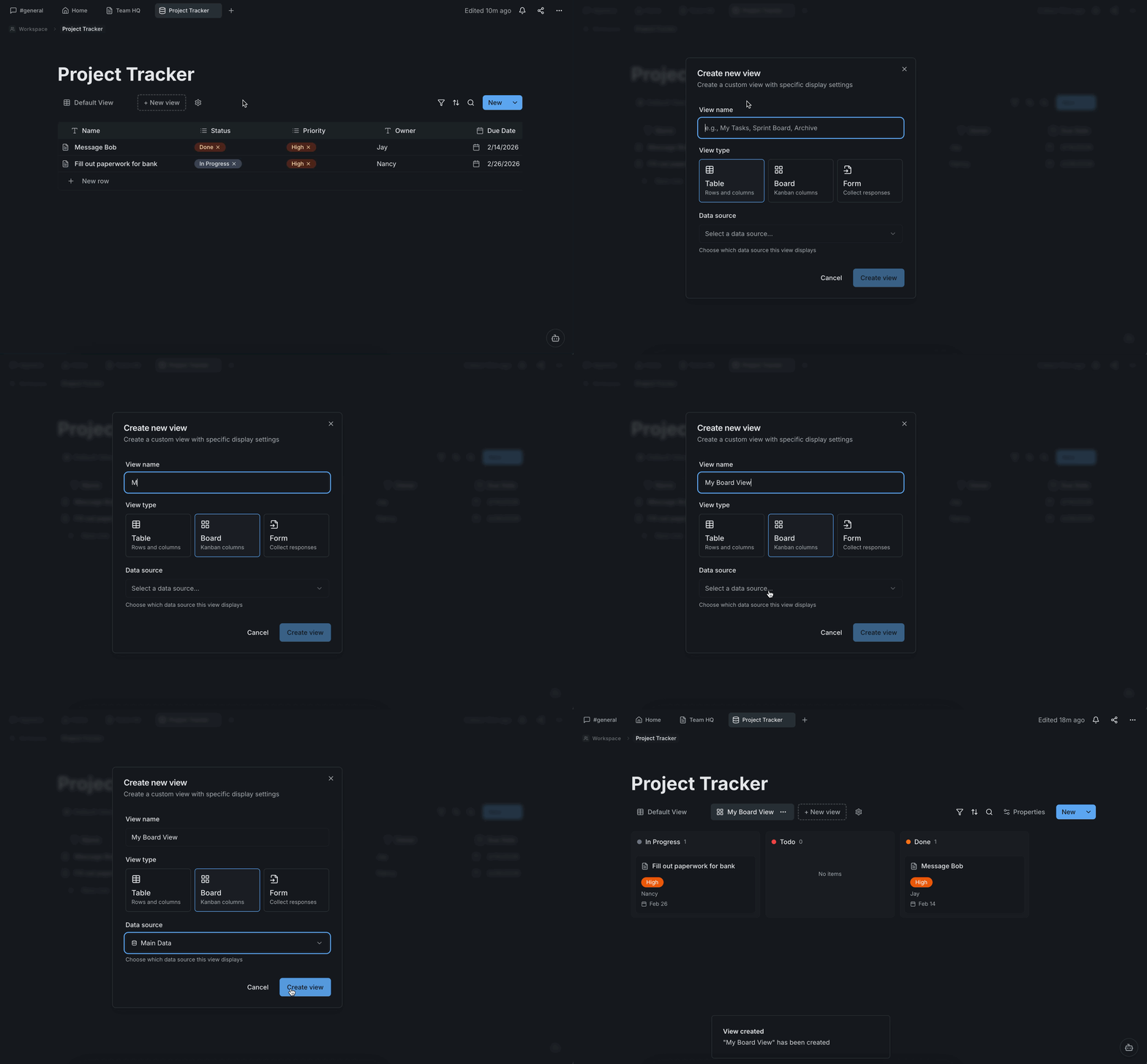
Click '+ New view' in the view tabs, name it 'Board', and choose Board as the view type. Your tasks instantly appear as cards grouped by Status — a full kanban board.
Your project tracker is ready
Switch between Table and Board views with one click. Drag cards between columns to update status. Filter, sort, and customize each view independently. A complete project tracker — built in under 2 minutes.