Run a postmortem your team follows up on
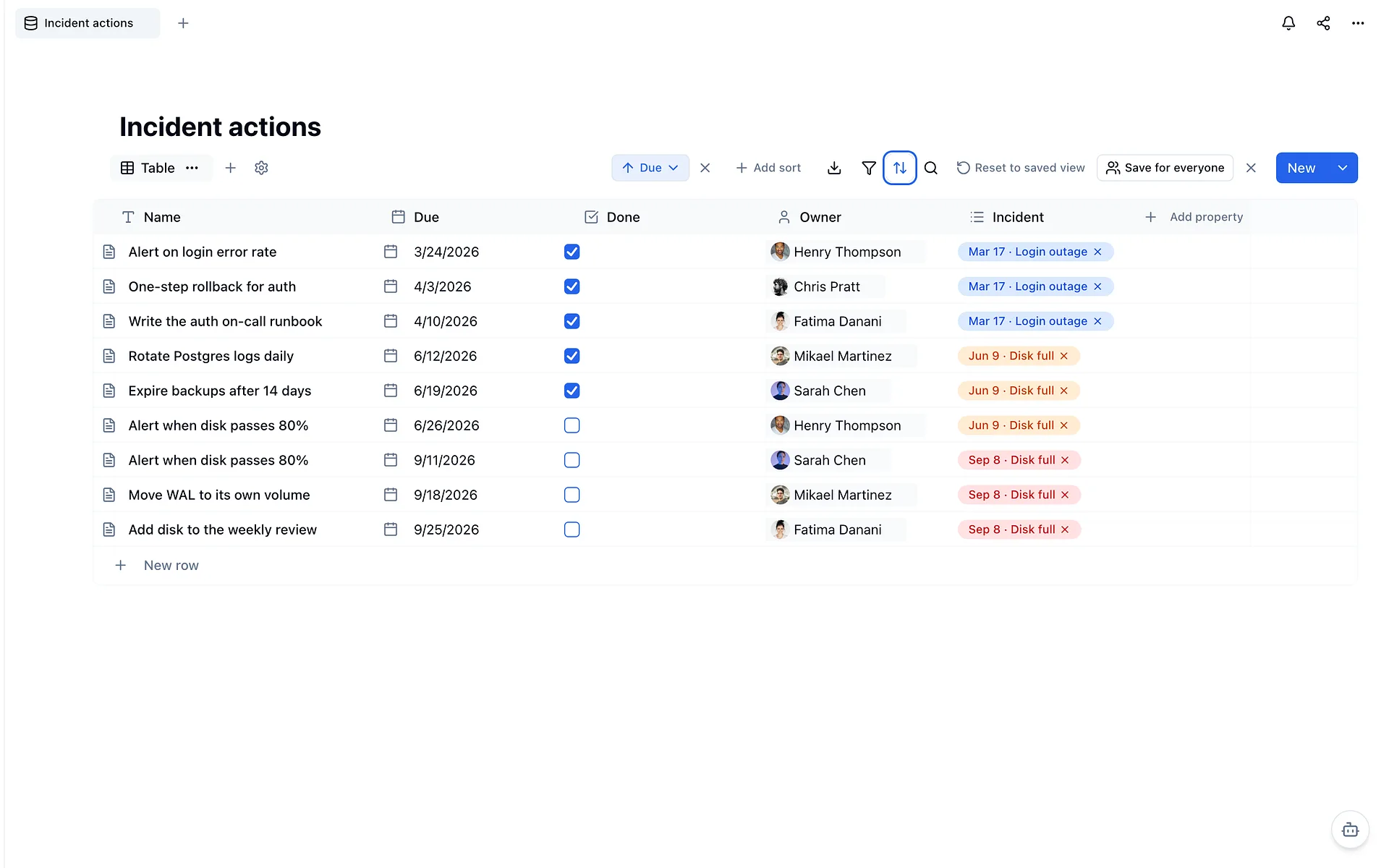
Move every action out of your postmortems into one database with an owner, a due date and a Done box, so the fixes you agreed to come back up until they are done.
Create one Incident actions database
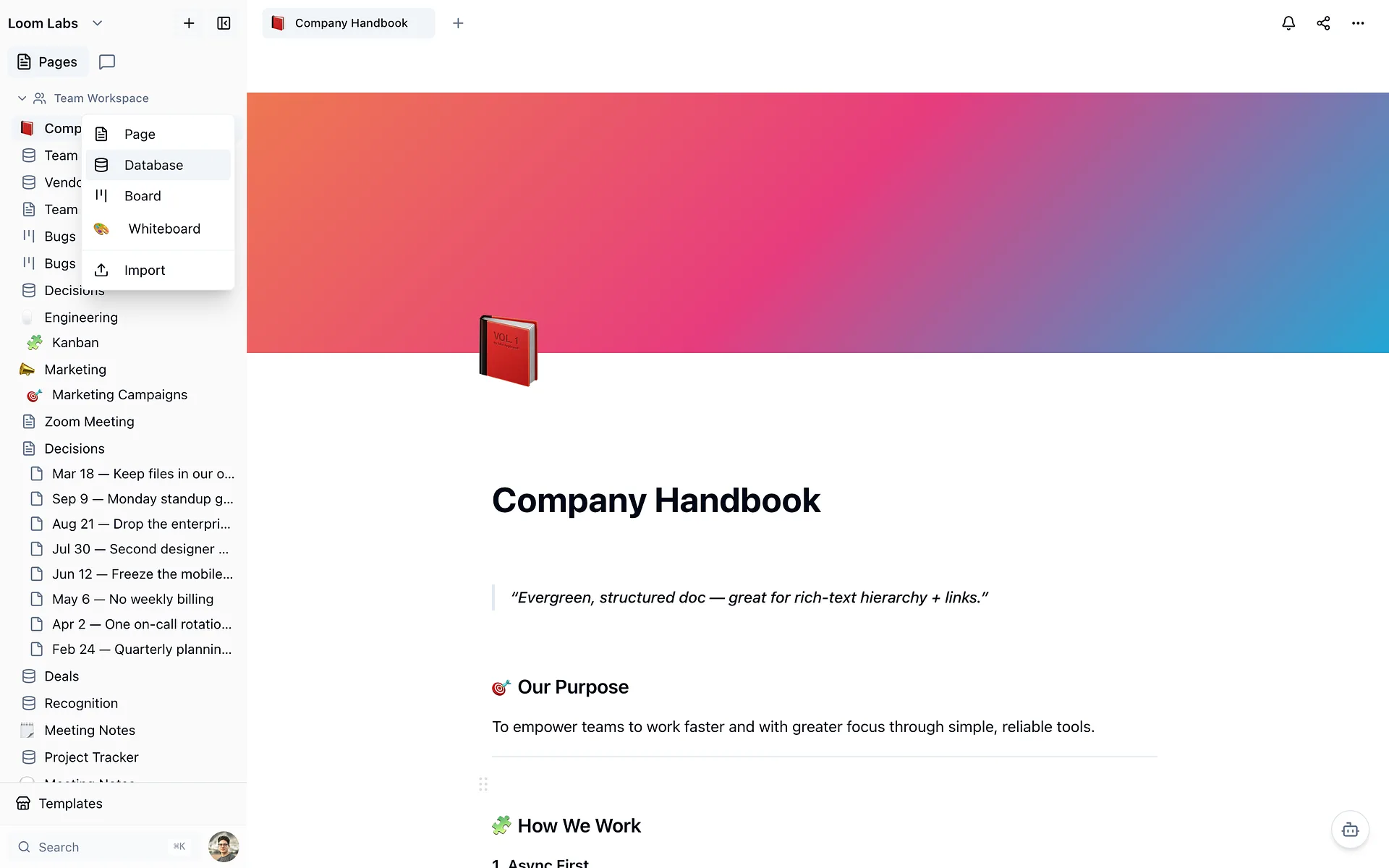
In the sidebar, hover Team Workspace, click the + and choose Database. Name it Incident actions. Use one database for every postmortem, not one per incident, so the follow-ups from different incidents end up side by side.
Add Owner, Due and Done
Click Add property for each column: Owner as a person, Due as a date and Done as a checkbox. Add an Incident select too, with one option per postmortem, so every action says where it came from.

Write each follow-up as a row
Take the action items out of the postmortem document and click New row for each one. The title is the action itself. Pick one Owner from your workspace members, set a Due date and choose the Incident. Keep the review as a document; only the actions move.

Sort by Due, oldest first
Click the sort icon in the database toolbar, choose Due and leave it on Ascending, then click Add Sort. The oldest follow-ups move to the top, whichever postmortem they came from.

Filter to the actions that are not done
Click the filter icon, choose Done, pick Is not checked and click Add Filter. Everything finished drops out, and what is left is every fix the team agreed to and has not made yet.

Save the view for everyone
Your sort and filter are yours alone until you save them. Click Save for everyone, and anyone on the team who opens this view sees the same list of open actions.

Start the next review from this list
Before writing a new postmortem, open the table and read what is still open. Here the June alert on disk usage was never done, and the same fix sits one row below it, written up again after September's incident.