Share a Page Publicly in 10 Seconds
Turn any page into a public link anyone can view — no sign-up required for visitors.
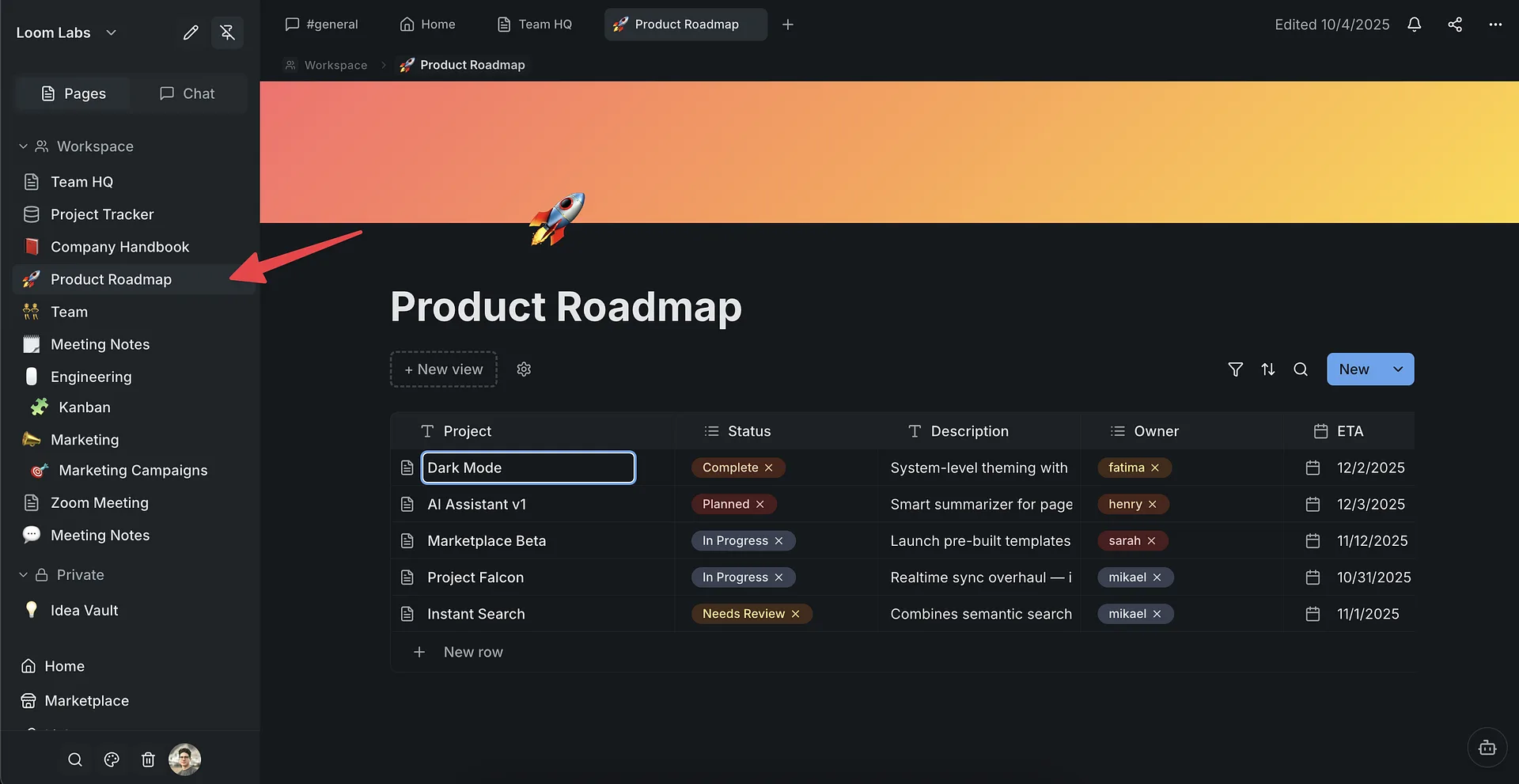
Open the page you want to share
Navigate to any page in your workspace. It can be a doc, a database, or a board — anything you want to make public.
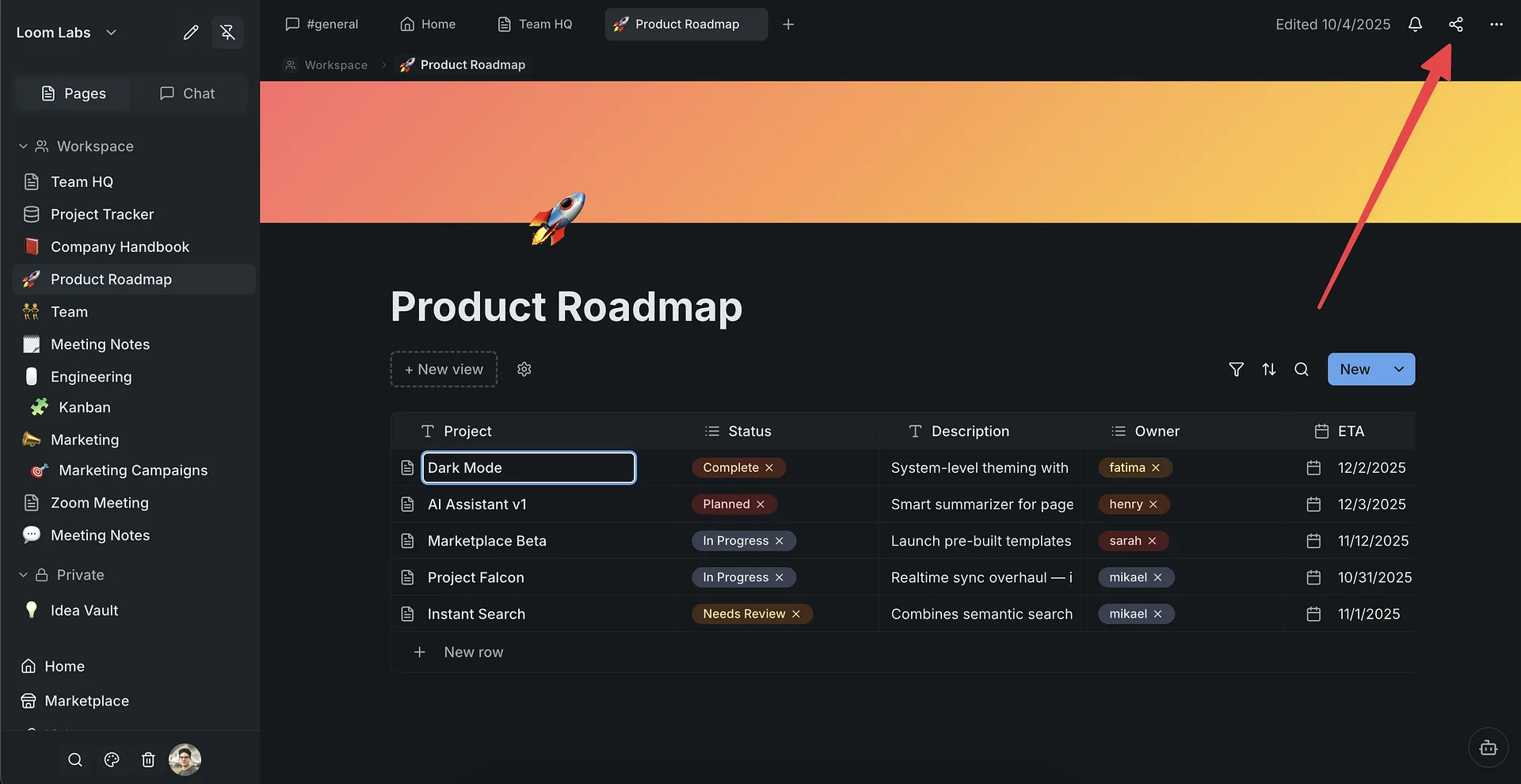
Click the Share button
In the top-right corner of the page, click the Share button. This opens the sharing popover where you control who can access your page.
Create a share link
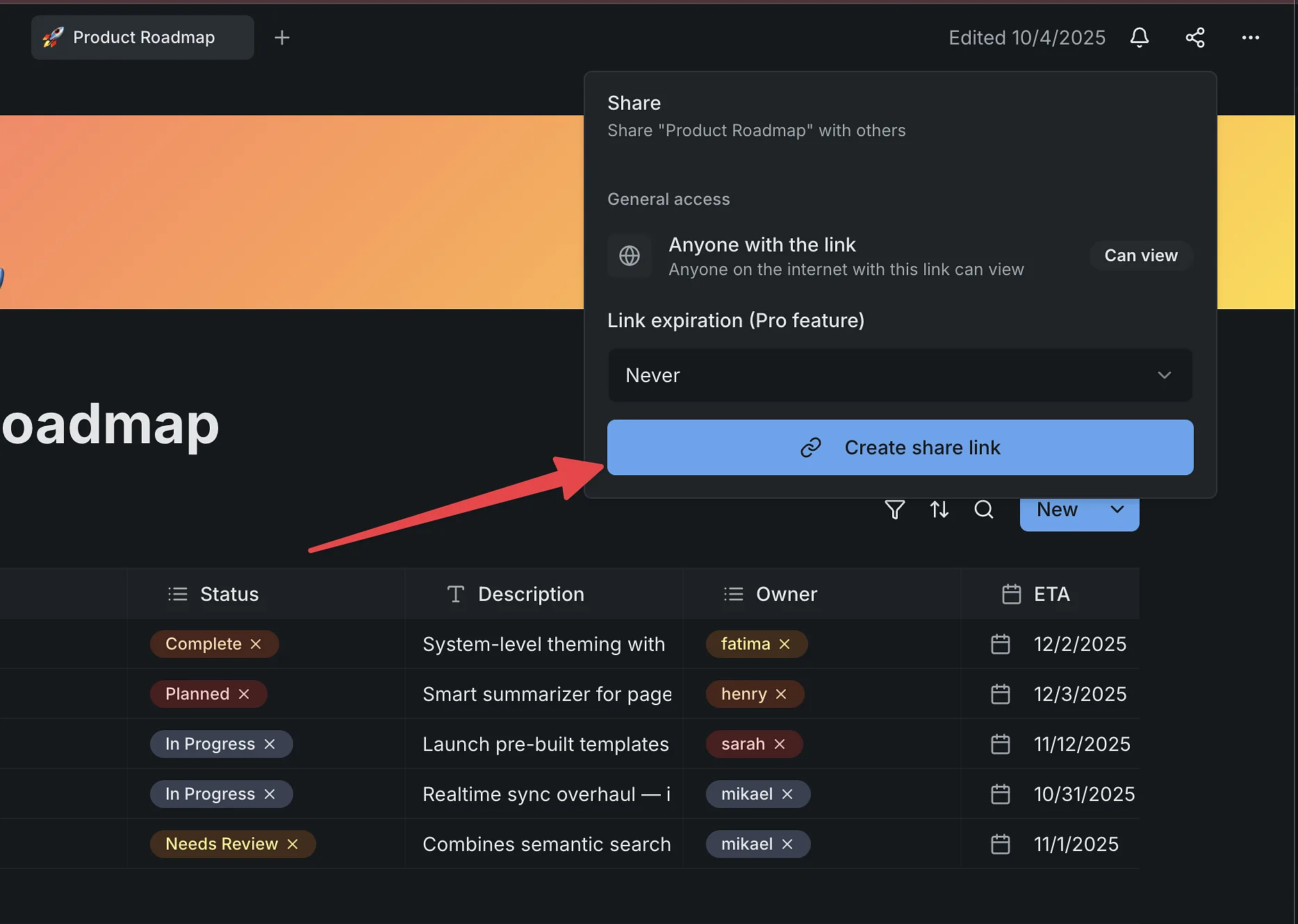
You'll see the sharing panel with a link expiration option. Leave it at 'Never' to keep the link active indefinitely, then click 'Create share link'.
Copy the link
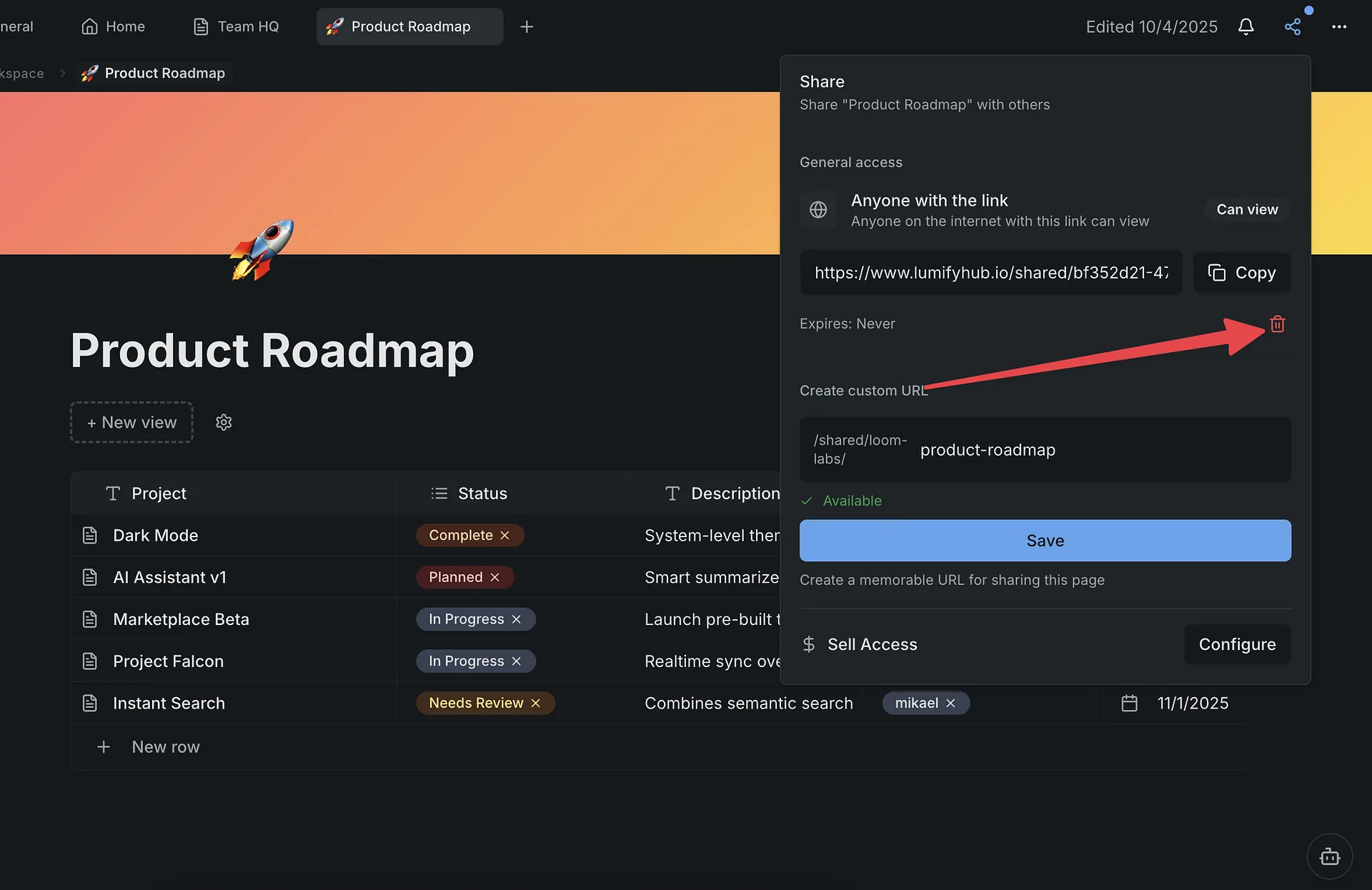
Your public link is ready. Click the Copy button to grab it — the button changes to 'Copied!' to confirm. Send it to anyone: clients, stakeholders, or post it online.

See how visitors see your page
Open the link in a new tab or incognito window. Visitors see a clean, read-only version of your page — no LumifyHub account needed. A banner invites them to sign up if they want to.

Set a custom URL
Want a memorable link? In the sharing panel, enter a custom slug like 'product-roadmap'. Your page gets a clean URL like lumifyhub.com/shared/your-workspace/product-roadmap.

Delete the share anytime
Changed your mind? Click the trash icon next to the expiration date to revoke the link instantly. The page goes private again and the old link stops working.